
Best WordPress Plugins for Beginners (Must-Have List 2026)
Discover the must-have plugins to build a fast, secure, and professional WordPress website.
- Last Update: October 3, 2026
Introduction
If you want to build a powerful WordPress website, choosing the right plugins is essential.
👉 Plugins help you add features like:
✔ SEO optimization
✔ Speed improvement
✔ Security
✔ Design customization
All without coding.
But here’s the catch:
❌ Too many plugins can slow your website
❌ Wrong plugins can break functionality
👉 That’s why in this guide, I’ll show you only the best WordPress plugins you actually need — nothing unnecessary.
Discloser: ElegantEspace is supported by readers like yourself. We may earn an affiliate commission when you purchase through our links . Commissions do not affect our editors’ opinions or evaluations.
🏆 Top 10 Must-Have WordPress Plugins (Quick Overview)
These are the essential plugins you need to build a fast, secure, and professional website.
| Plugin | Purpose | Best For | Free Version | |
|---|---|---|---|---|
Elementor |
Design |
All Website |
✔ Yes | |
Yoast SEO |
SEO |
All Website |
✔ Yes | |
LiteSpeed Cache |
Speed |
All Website |
✔ Yes | |
WP Form |
Form |
All Website |
✔ Yes | |
Wordfence |
Security |
All Website |
✔ Yes | |
UpdraftPlus |
Backup |
All Website |
✔ Yes | |
Smush |
Images |
All Website |
✔ Yes | |
Woo-Commerce |
e-Commerce |
Online Store |
✔ Yes | |
MonsterInsights |
Analytics |
All Website |
✔ Yes | |
MailPoet |
Email |
All Website |
✔ Yes |
Power Your Plugins With Fast Hosting
You’ve now seen the essential plugins needed to build your website.
But here’s something most beginners miss:
👉 Plugins alone are not enough.
Your website performance depends heavily on your hosting.
❌ Slow hosting can make even the best plugins perform poorly
❌ It can affect your speed, SEO rankings, and user experience
👉 That’s why choosing the right hosting is important.
Best Hosting for Beginners
If you want your website to run smoothly, you need hosting that is:
✔ Fast and reliable
✔ Beginner-friendly
✔ Affordable
✔ Optimized for WordPress
👉 I recommend checking this guide on hosting
My Recommendation
For most beginners, Hostinger is a great choice because:
✔ Fast loading speed
✔ Free domain name included
✔ Easy setup
✔ Affordable pricing
👉 Beginner-friendly setup with free domain
Recommended Plugin Setup (For Beginners)
Elementor
✔ Create homepages and landing pages ✔ Design service and blog pages ✔ Customize layouts with drag-and-drop ✔ Use pre-built templates ✔ Build responsive (mobile-friendly) designs
Yoast SEO
✔ Optimize keywords for better rankings ✔ Add meta titles and descriptions ✔ Generate XML sitemap ✔Get real-time SEO suggestions ✔ Control how your content appears in search results
MailPoet
✔ Collect email subscribers ✔ Send newsletters from WordPress ✔ Create email campaigns ✔ Automate emails/ Newsletter ✔ Manage subscriber lists ✔ Create signup forms to grow your email list
👉 This setup is enough to build a fast and professional website.
#1
Elementor (Best Page Builder)
Elementor is one of the most popular page builders for WordPress.
👉 It allows you to design your website using drag-and-drop — no coding required.
👉 If you want to create a professional website easily, Elementor is the best choice.
👉 Works best on fast hosting for better performance.
Best For
- Beginners, bloggers, business websites, Agency
What You Can Do
- Create homepages and landing pages
- Design service pages
- Customize layouts visually
Key Benefits
- Beginner-friendly interface
- Real-time editing
- Professional templates
Why I Recommend It
✔ Saves time
✔ No coding required
✔ Highly flexible
#2
Yoast SEO (Best SEO Plugin)
Yoast SEO helps you optimize your website for search engines like Google.
👉 It provides step-by-step suggestions to improve your SEO.
👉 If you want traffic from Google, this plugin is essential.
Best For
- SEO beginners, bloggers, affiliate websites, Business Website
What You Can Do
- Optimize keywords
- Add meta titles & descriptions
- Generate XML sitemap
Key Benefits
- Easy setup wizard
- Advanced SEO features
- Free version is powerful
Why I Recommend It
✔ Better than many paid plugins
✔ Beginner-friendly
✔ Helps rank faster
#3
LiteSpeed Cache (Best Speed Plugin)
Website speed is critical for SEO and user experience.
👉 LiteSpeed Cache helps your website load faster.
👉 If your site is slow, this plugin can fix it.
Best For
- All websites, especially blogs and business sites
What You Can Do
- Enable caching
- Optimize images
- Improve performance
Key Benefits
- Faster loading
- Better SEO ranking
- Improved user experience
Why I Recommend It
✔ Powerful free features
✔ Easy setup
✔ Huge speed improvement
#4
WPForms (Best Form Plugin)
WPForms allows you to create contact forms easily.
👉 No coding required — just drag and drop.
👉 You want visitors to contact you, this plugin is a must.
Best For
- All websites, especially Business websites, blogs, service providers
What You Can Do
- Create advanced contact forms
- Build inquiry forms
- Collect leads
- Payment forms
Key Benefits
- Beginner-friendly
- Fast setup
- Professional forms
Why I Recommend It
✔ Easy to use
✔ Reliable
✔ Great for lead generation
#5
Wordfence (Best Security Plugin)
Security is essential for any website.
👉 Wordfence protects your site from hackers and malware.
👉 If you want to keep your website safe, install this plugin.
Best For
- All websites
What You Can Do
- Enable firewall
- Scan malware
- Protect login
Key Benefits
- Real-time protection
- Easy to use
- Trusted security
Why I Recommend It
✔ Strong protection
✔ Free version available
✔ Essential for safety
#6
UpdraftPlus (Best Backup Plugin)
Backups protect your website from data loss.
👉 UpdraftPlus automatically saves your website.
👉 If something goes wrong, you can restore your site easily.
Best For
- All websites
What You Can Do
- Schedule backups
- Store in cloud
- Restore anytime
Key Benefits
- Automatic backups
- Easy restore
- Reliable
Why I Recommend It
✔ Peace of mind from data loss
✔ Simple setup
✔ Essential plugin
#7
Smush (Image Optimization Plugin)
Images can slow down your website.
👉 Smush compresses images without losing quality.
👉 If your site has many images, this plugin is very useful.
Best For
- Blogs, portfolio sites, image-heavy websites
- If you’re planning to start a blog, follow this complete blogging guide.
What You Can Do
- Compress images
- Enable lazy load
- Optimize in bulk
Key Benefits
- Faster website loading
- Better performance
- Improved SEO
Why I Recommend It
✔ Easy to use
✔ Automatic optimization
✔ Free version available
#8
WooCommerce (eCommerce Plugin)
WooCommerce helps you create an online store.
👉 You can sell products directly from your website.
👉 If you want to start an online business, this is the best plugin.
👉 Works best on fast hosting for better performance.
Best For
- Online stores, product-based businesses
What You Can Do
- Open e-commerce website
- Add products
- Accept payments
- Manage orders
Key Benefits
- Highly customizable
- Scalable
- Free to start
Why I Recommend It
✔ Most popular eCommerce solution
✔ Flexible
✔ Beginner-friendly
#9
MonsterInsights (Analytics Plugin)
MonsterInsights connects your website with Google Analytics.
👉 It helps you understand your visitors.
👉 If you want to track your website performance, use this plugin.
Best For
- Bloggers, marketers, business websites, WooCommerce stores
What You Can Do
- Advanced tracking in 1 click:
- Shows useful reports inside WordPress
- No need for coding or Google Tag Manager
- Helps track actual revenue & conversions
Key Benefits
- Easy analytics
- Simple dashboard
- No coding required
Why I Recommend It
✔ Beginner-friendly
✔ Valuable insights
✔ Helps growth
#10
MailPoet (Email Marketing Plugin)
MailPoet helps you build and manage email subscribers.
👉 You can send newsletters directly from WordPress.
👉 If you want to grow an audience, this plugin is useful.
Best For
- Bloggers, marketers, business websites, WooCommerce stores
What You Can Do
- Collect emails
- Send newsletters
- Automate emails
Key Benefits
- Built-in email system
- Easy setup
- Good for beginners
Why I Recommend It
✔ Helps build audience
✔ No external tools needed
✔ Simple to use
Want These Plugins To Work At Their Best?
Even the best plugins need fast hosting to perform properly.
👉 Slow hosting = slow website = poor results
Why I Recommend Hostinger
✔ Fast loading speed
✔ Free domain
✔ Beginner-friendly
✔ Affordable pricing
✔ 24/7 support
👉 Perfect for beginners starting their first website.
Hostinger
Trusted by millions of websites worldwide.
How To Install WordPress Plugins (Step-by-Step)
There are three ways to install a WordPress plugin:
✔ From the WordPress dashboard (easiest)
✔ Uploading a plugin file (.zip)
✔ Using FTP (advanced method)
👉 If you’re a beginner, you should use the first method — it’s the fastest and easiest.
Method #1
Install Plugin From WordPress Dashboard (Recommended)
This is the simplest way to install plugins directly from the WordPress directory.
Steps:

- 1. Log in to your WordPress dashboard
- 2. Go to Plugins → Add New
- 3. Search for the plugin using its name (e.g., Woocommerce, Elementor, Yoast SEO)

- 4. Click Install Now
- 5. After installation, click Activate
- 👉 That’s it! Your plugin is now ready to use.
💡 Pro Tip
- 👉 You can activate or deactivate plugins anytime from the Plugins section.
Method #2
Upload Plugin (.zip File)
This approach is used when installing premium plugins such as Elementor Pro or plugins downloaded from third-party websites.
Steps:
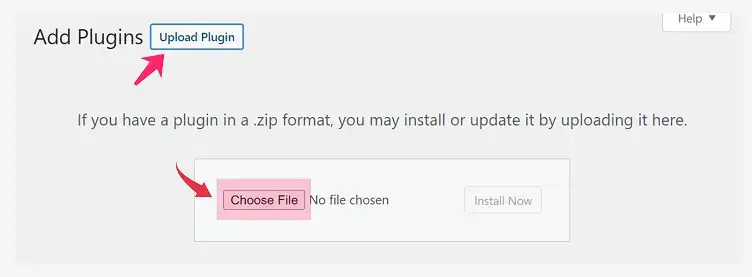
- 1. Download the plugin as a .zip file
- 2. Go to Plugins → Add New
- 3. Click Upload Plugin (top of the page)
- 4. Click Choose File and select the .zip file

- 5. Click Install Now
- 6. After installation, click Activate Plugin
⚠️ Important
- 👉 Only download plugins from trusted sources to avoid security issues.
Method #3
Install Plugin Using FTP (Advanced)
This method is for advanced users or when other methods don’t work.
Steps:

- 1. Extract the plugin (.zip file) on your computer
- 2. Open an FTP client like FileZilla
- 3. Connect to your website using FTP credentials (from your hosting provider)

- 4. Navigate to: 👉 wp-content → plugins
- 5. Upload the extracted plugin folder
- 6. Go to WordPress dashboard → Plugins → Installed Plugins
- 7. Click Activate
⚠️ Note
- 👉 If you’re a beginner, you can skip this method.
How To Manage WordPress Plugins (Beginner Guide)
Once you install plugins, it’s important to manage them properly to keep your website fast, secure, and error-free.
👉 Good plugin management helps you avoid issues like slow speed, conflicts, and security risks.
Where To Manage Plugins?
To manage plugins:
1. Go to your WordPress dashboard
2. Click Plugins → Installed Plugins
👉 Here, you’ll see all the plugins installed on your website.
# 1
Activate / Deactivate Plugins
You can easily enable or disable plugins whenever needed.
- Click Activate to enable a plugin
- Click Deactivate to disable it

👉 Deactivating a plugin does not delete it — you can reactivate it anytime.
💡 Pro Tip
👉 If your website breaks after installing a plugin, deactivate it immediately.
# 2
Delete Unused Plugins (VERY IMPORTANT)
Sometimes, you may need to remove a plugin—whether it’s no longer useful, poses security risks, or slows down your website.
Unused plugins can negatively impact your site’s performance and leave it vulnerable.
👉 Always remove plugins you don’t use by following the steps below:
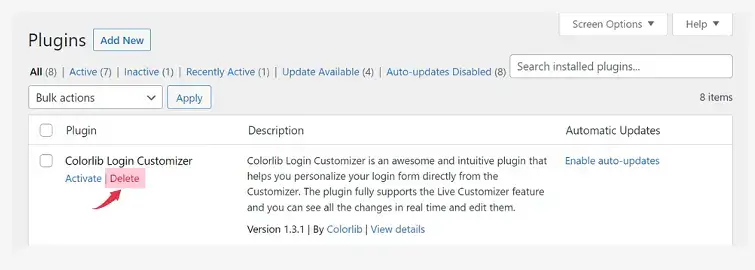
- Go to Plugins → Installed Plugins
- Click Deactivate
- Then Click Delete
# 3
Update Plugins Regularly
If you want your website to be safe and secure, It’s important to keep your plugins up to date. Out-of-date plugins are the prime target of hackers.
Older versions of plugins may be less secure and may conflict with newer versions of WordPress or with your other plugins and themes.
When you receive an update notification click on the icon and this will take you to the Updates page.

- Go to Plugins → Installed Plugins
- Click Update Now (if available)
You will also get an option of auto-updates, which will spare you the hassle of checking and upgrading plugins every time.

Sometimes, plugins that have recently added a new functionality can be buggy. So, only toggle automatic updates when you fully trust the plugin developers.
# 4
Avoid Installing Too Many Plugins
Be selective when installing plugins on your WordPress website.
Plugins don’t just add features—they directly affect your site’s performance, security, and overall behavior.
Poorly coded plugins can slow down your website, cause crashes, or create vulnerabilities. Some may look appealing at first, but can leave behind unwanted data or issues that are difficult to remove later.
👉 Before installing any plugin, always check:
- Average ratings
- User reviews
- Number of active installations
- Developer reputation
- Support and update frequency
# 5
Does The Number of Plugins Matter?
Not exactly.
Plugins are simply pieces of code that extend your website’s functionality. So, the number of plugins isn’t the real problem—their quality is.
👉 It’s far better to use:
- 5 lightweight, well-coded plugins ✅
than - 2 heavy, poorly optimized plugins ❌
However, installing too many plugins can still:
- Cause conflicts between plugins ⚠️
- Slow down your website 🚫
Developers regularly update plugins to maintain compatibility with WordPress and other tools.
That said, you should consider a few key factors before installing any plugin.
5 Key Things To Consider When Installing Free WordPress Plugins
When you’re just starting out or working with a limited budget, it’s natural to choose free plugins instead of paid ones.
👉 And that’s completely fine — WordPress offers thousands of free plugins.
However, not all plugins are reliable.
❌ Some can slow down your website
❌ Some can affect your design or functionality
❌ Others may even create security risks
👉 A poorly coded plugin can harm your website’s performance and make it vulnerable to attacks.
That’s why it’s important to be careful when choosing plugins.
👉 Below are 5 key things you should always check before installing any free WordPress plugin.
Point #1
Check Plugin Rating
The easiest way to evaluate a plugin is by looking at its rating.
👉 Choose plugins with at least 4+ star ratings.

Why It matters:
- Ratings reflect real user experience
- Higher rating = better reliability
Point #2
Read Reviews & Check Active Installations
Don’t rely only on ratings — read user reviews as well.
Check:
✔ What users are saying
✔ Any common complaints
✔ Overall feedback

Also, check active installations:
✔ More installs = more trust
✔ Prefer plugins with 2,000+ active installs
👉 For new plugins:
Check developer credibility before installing
Point #3
Check Updates & Compatibility
A plugin must be regularly updated.
Always check:
✔ Last updated date
✔ Compatibility with latest WordPress version

👉 Outdated plugins can:
❌ Break your website
❌ Create security issues
👉 Always choose plugins that are actively maintained.
Point #4
Check Support & Developer Activity
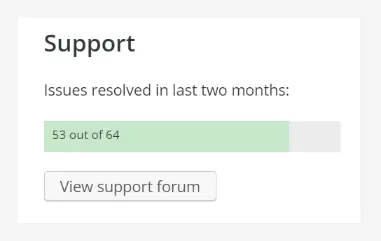
Good plugins have active support.
Look for:
✔ Number of support requests
✔ How many are resolved
👉 If many issues are unresolved, avoid the plugin.
👉 Active support = reliable plugin.
Point #5
Read FAQs & Documentation
Many plugins include helpful documentation.
Check:
✔ FAQs section
✔ Setup instructions
✔ Usage tips

👉 This helps you:
✔ Understand how the plugin works
✔ Avoid mistakes during setup
Where To Find WordPress Plugins
If you’re new to WordPress, the official plugin directory is the best place to start.
👉 It’s built into your dashboard, easy to use, and contains thousands of free plugins.
However, it’s not the only option.
👉 Many developers also offer plugins through their own websites or premium marketplaces.
CodeCanyon
👉 One of the largest marketplaces for premium WordPress plugins
✔ Wide range of plugins
✔ One-time purchase options
✔ Advanced features
WPMU DEV
👉 Offers a collection of high-quality plugins and tools
✔ Performance optimization
✔ Security tools
✔ Marketing and analytics features
Frequently Asked Questions
1. Which WordPress plugins are essential for beginners?
👉 If you’re just starting, you only need a few essential plugins:
✔ Elementor (design)
✔ Yoast SEO (SEO)
✔ LiteSpeed Cache (speed)
✔ WPForms (contact forms)
👉 These are enough to build a fast and professional website.
2. How many plugins should I install on my website?
👉 Ideally, keep your plugins between 5 – 15.
✔ Too many plugins can slow down your website
✔ Use only what you really need
👉 Quality is more important than quantity.
3. Are free WordPress plugins safe to use?
👉 Yes, free plugins are safe if you choose them carefully.
✔ Check ratings and reviews
✔ Ensure regular updates
✔ Download only from trusted sources
👉 Avoid nulled or pirated plugins.
4. Can plugins slow down my website?
👉 Yes, poorly coded or too many plugins can affect speed.
✔ Use lightweight plugins
✔ Install a caching plugin (like LiteSpeed Cache)
✔ Use fast hosting
👉 Speed depends on both plugins and hosting.
5. Do I need paid plugins to build a website?
👉 No, you can build a complete website using free plugins.
👉 Paid plugins are only needed for advanced features.
6. How do I update WordPress plugins?
👉 Go to Plugins → Installed Plugins
👉 Click Update Now (if available)
👉 Keeping plugins updated improves security and performance.
7. What happens if I deactivate a plugin?
👉 Deactivating a plugin will stop its functionality, but it won’t delete your data.
👉 You can reactivate it anytime.
8. Can I change plugins later?
👉 Yes, you can install, remove, or replace plugins anytime.
👉 WordPress gives you full flexibility.
9. Which hosting is best for running WordPress plugins?
👉 For best performance, you should use fast and reliable hosting.
✔ Better speed
✔ Better SEO
✔ Fewer errors
👉 Most beginners prefer Hostinger because it’s easy to use and affordable.
10. Can I install my own plugin?
Yes! you can install your own plugin to your WordPress website.
You just have to upload the zip file of the developed plugin in the plugin directory and you are all set.