How To Add An Author's Photo In WordPress
- Last Update: April 20, 2025
Putting a face to your content on a WordPress blog can help visitors more connected and engaged with your website.
It’s easier to trust the material if it has an author’s face. Adding personal photos also enhances brand recognition and visitor engagement.
By default, almost every WordPress theme displays an author’s gravatar image as their profile photo.
Sometimes an Author may want to display a different photo rather than showing the default gravatar.
In this tutorial, I’m going to show you how to update an author profile photo.
Discloser: ElegantEspace is supported by readers like yourself. We may earn an affiliate commission when you purchase through our links . Commissions do not affect our editors’ opinions or evaluations.
When Do You Need To Add An Author’s Photo In WordPress?
If you have a multi-author WordPress site, you may need to include an author information box in your WordPress posts.
These author bio boxes typically include the author’s profile photo, a brief bio, and a link to their website or social profiles.
It allows you and your visitors to know more about the author.
How To Add An Author’s Photo In WordPress
The easiest way to add/ update/ change an author photo in WordPress is by using plugins.
In this guide, I am going to use one of the best avatar plugins called PublishPress Authors.
This plugin allows authors to edit their own profile and author photo by adding a new ‘Author Profile’ area to their WordPress dashboard.
Before doing all these things you need to create an Author Box on the WordPress website.
For that, all you need to do is to install and activate the mentioned plugin.
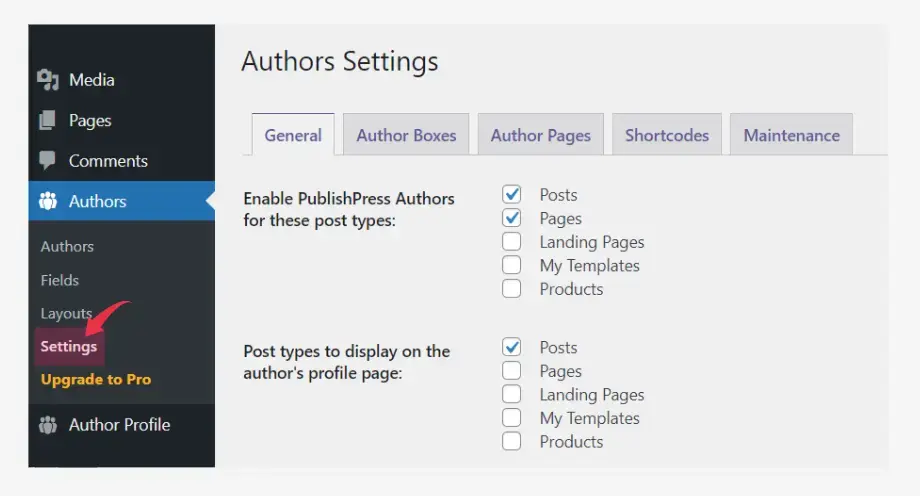
Upon activation, head over to Authors » Settings then under the General tab check the box where you would like to display the author box.
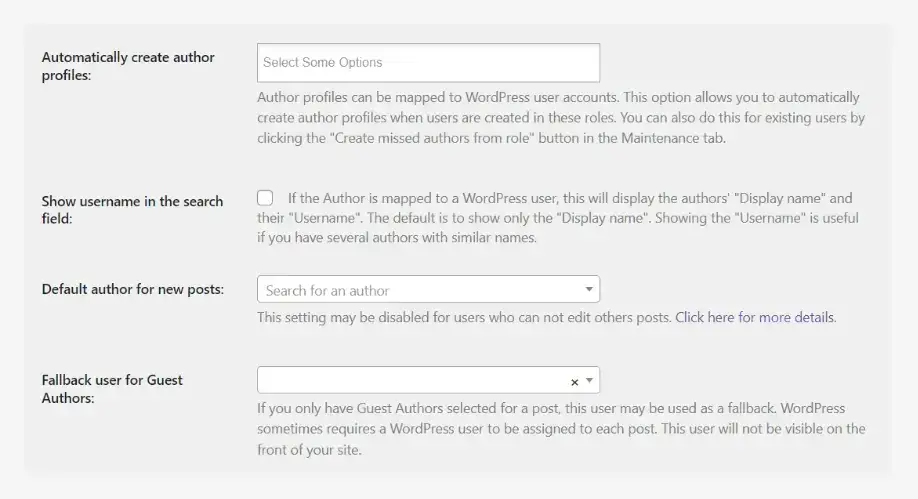
Down below in the same tab; choose the author role, Default author for a new post and fallback user for guest authors.
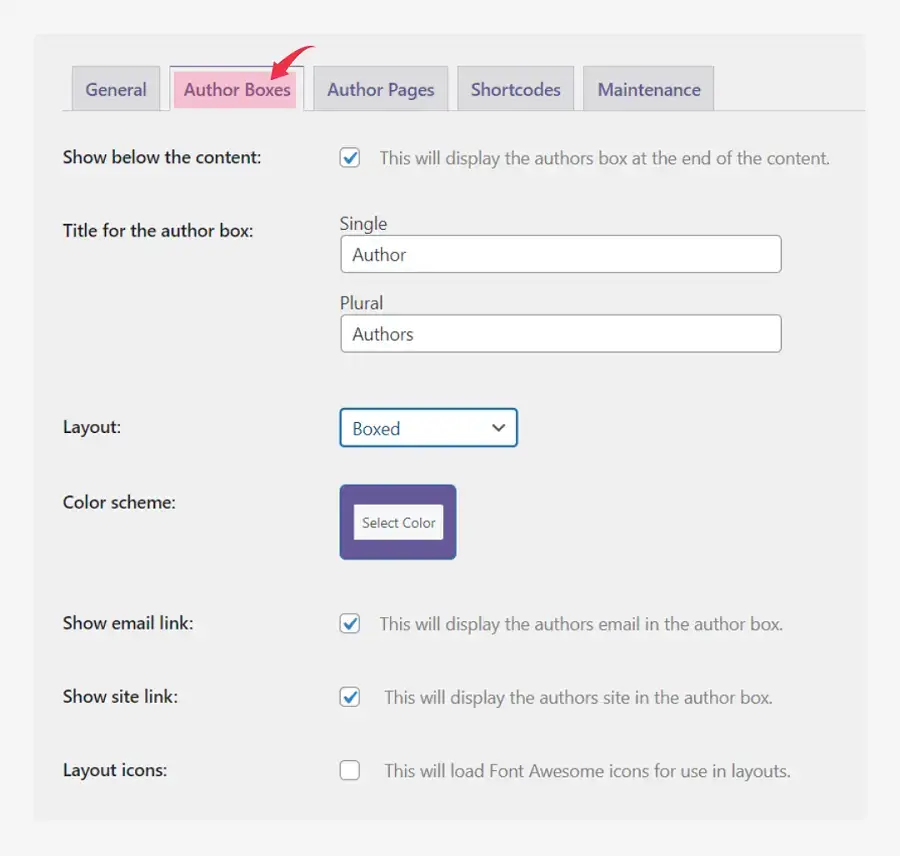
Now move to the Author Box tab and choose where you would like to display the author box in the content and choose whether you want to show the author’s email and website link in the box. You can also choose the layout style of the author box from the dropdown option.
The next tab i.e. Author pages is all about customizing author box header tags, featured images, excerpts, comment counts etc.
Choose the option as per your requirements.
If you would like to display the author box at different places you can use the shortcodes provided in the Shortcode tab.
Don’t forget to save all the changes you made.
How To Change An Author’s Photo In WordPress
You can also use PublishPress Authors as an administrator to change any of the individual author photos that appear on your website.
This is useful if an author selects a photo that isn’t appropriate for your website.
To change an author’s photo, simply go to Authors » Authors.
There you will see the list of all the authors who are registered with your WordPress blog.
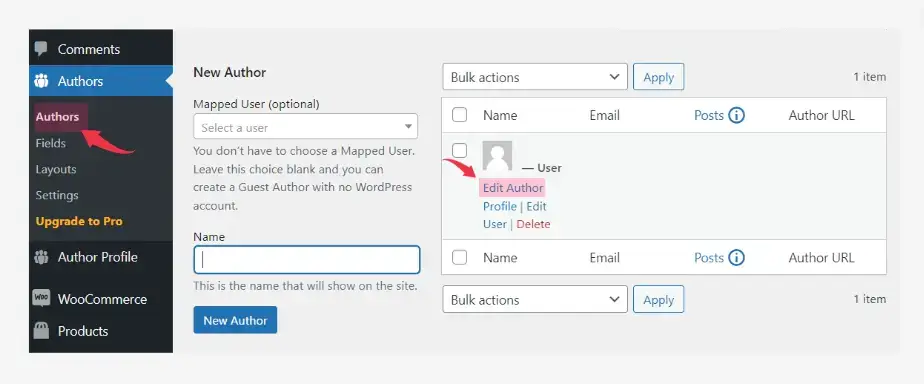
Choose the author and click on the Edit Author Profile option as shown in the above screenshot.
PublishPress will try to find a gravatar that is linked to the author’s email address by default.
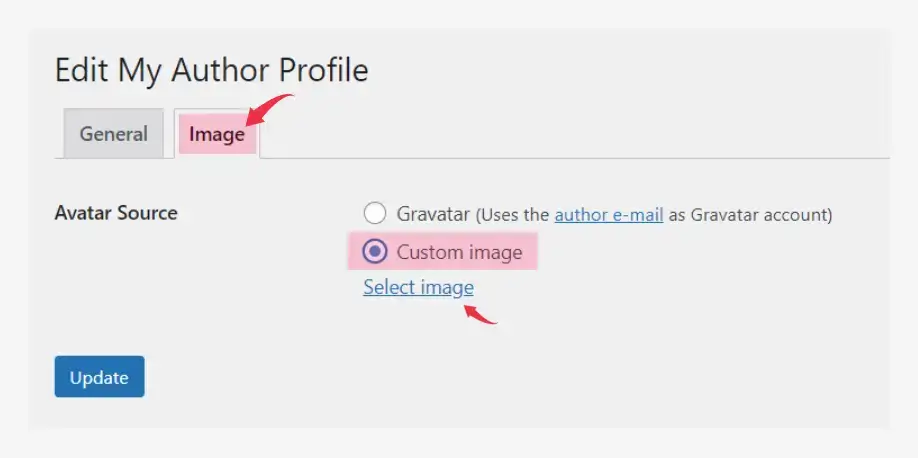
To use a different author photo choose the Custom image radio button and click on Select image.
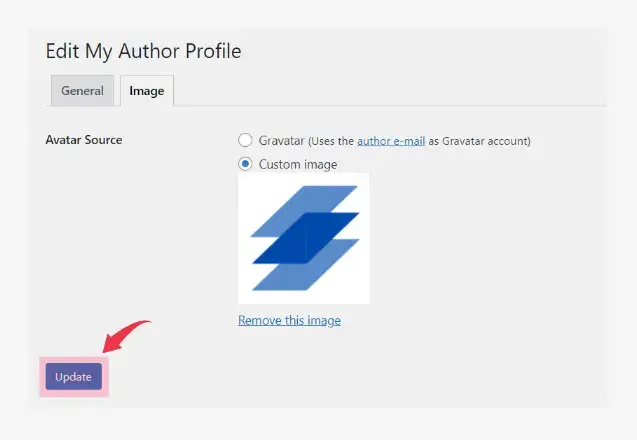
Then choose any image from your WordPress media library, or upload a new image.
![]()
Update the changes your website will now use this new image as the author’s photo.
We hope this article helped you learn how to add an author’s photo in WordPress.
Best User Avatar Plugins for WordPress
1. PublishPress Authors
2. Simple Local Avatars
3. ProfilePress
4. Basic User Avatars
5. Author Avatars List
6. SVG Avatars Generator
7. Avatar Manager
8. Uni Avatar
9. WP User Avatars
Important FAQs On Avatar
What is an Avatar?
An avatar is a digital representation of a person, typically in the form of a profile picture or image used to identify users on websites, forums, social media platforms, and online communities.
Why are Avatars Used?
Avatars serve several purposes, including personalizing online identities, aiding in user recognition, adding a visual element to online interactions, and representing individuals or brands.
How Do I Create an Avatar?
Avatars can be created using various methods, such as taking a photo and cropping it to the desired size, using avatar creation tools or websites, or designing a custom image. Many social media platforms also offer avatar customization options.
Why Should You Add Avatars To Your Website
The answer is simple. You want to stand out from the competition.
Are Avatars Private?
The privacy of avatars depends on user settings and platform policies. Some avatars are publicly visible, while others can be set to private or restricted to specific audiences.
Can I Use Different Avatars on Different Websites?
Yes, you can use different avatars on different websites. Some platforms allow you to upload a unique avatar for each account or profile you have.
What Image Formats are Suitable for Avatars?
Common image formats like JPEG, PNG, and GIF are suitable for avatars. The choice of format depends on the platform’s requirements and image quality preferences.
Can I Use Avatars for Branding?
Yes, avatars can be used for branding purposes. Many businesses and organizations use custom avatars or logos as their profile pictures to build brand recognition.
Are There Any Copyright Concerns with Avatars?
Using copyrighted images as avatars without permission can lead to copyright infringement issues. It’s advisable to use images you own or have the rights to, or to use licensed or royalty-free images.
Can Avatars Be Used for Anonymity?
Yes, avatars can be used to maintain anonymity online. Some people use avatars to protect their privacy or separate their online and offline identities.
Are There Guidelines for Creating Appropriate Avatars?
Many online platforms have guidelines and community standards regarding avatar content. It’s essential to follow these guidelines to ensure your avatar is appropriate and complies with platform policies.
How Can I Optimize My Avatar for Different Platforms?
To optimize your avatar for different platforms, ensure it meets the platform’s size and format requirements. Test how it appears on various devices and screens to ensure it looks good everywhere.
